
Help Center
Everything you need to start collaborating — from your first sign-in through repositories, reviews, and notifications.
Welcome to Collaborate at Hart
Your team's private workspace for files, tasks, and reviews. Start here to sign in, pick your work path, and find step-by-step guides — no Git commands required for browser workflows.
First week
New developer workflow
Pull the whole project, edit your area, push your branch, then merge to main. Pictures and extra-detail tips are on the guide.
Open the illustrated guide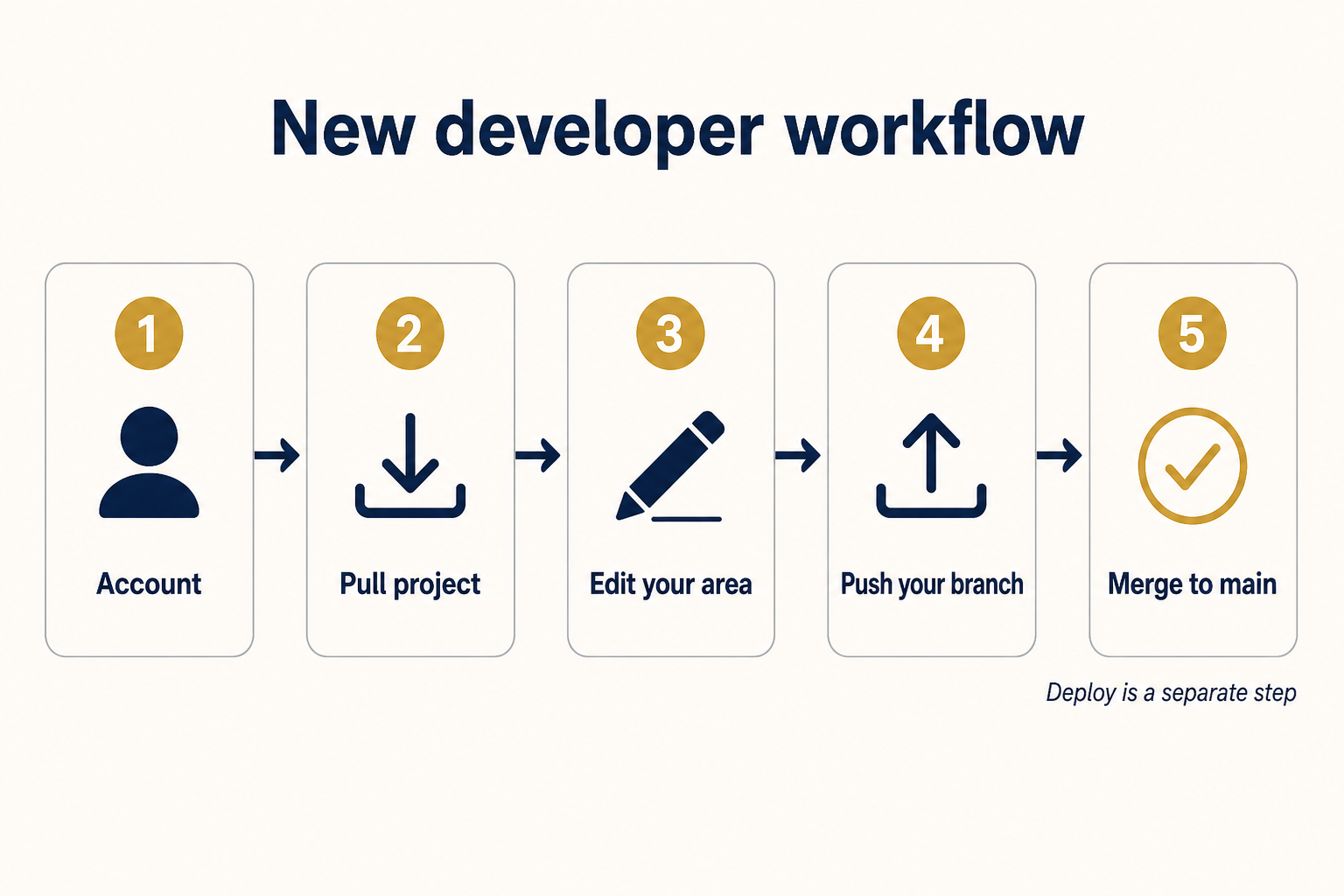
What Collaborate is
- Private web workspace for HartApps teams
- Browse files in the browser (Code tab)
- Pull/push working copies with the collab CLI
- Track tasks with Issues; review with Pull requests
- Sign in with HartApps SSO (@hartapps.com)
- Not a production deployer — sync first, deploy separately
Rule: use the website — not Git commands or email attachments.
What it is not
- Not Git — no git clone or git push
- Not GitHub or GitLab — similar ideas, different tool
- Not email or file sharing — use Issues and comments
Day one — five steps
Follow this order on your first visit. No access? Ask an admin to add you to your team organization.
- 1
Use your @hartapps.com account — no separate Collaborate password.
- 2
See recent commits, issues, and activity across your teams.
- 3
Take a tour(optional)
Optional — click Take a tour (sparkle icon) in the top navigation after sign-in.
- 4
Display name, avatar, and email notification preferences.
- 5
Land on the Code tab — file tree and README.
Choose your path
Pick the track that matches your role. You can switch paths as your permissions change.
Reader
Browse code, history, and discussions
- Code tab
- Commits
- Search
- Issues list
Local + CLI
Developers editing on their machine
- Get local copy (.cmd) or collab pull
- collab status
- Edit locally
- collab push → pull request
Browser editor
Maintainers making changes in the browser
- Create branch
- Edit file
- Save changes
- New pull request
Coordinator
Review, approve, and merge team work
- Notifications
- Review PR diff
- Approve or request changes
- Merge
Safe team workflow
Use when your default branch is protected or your team requires review.
- Create feature branch
- collab pull → edit → collab push (or browser edit)
- New pull request
- Team review + merge to main
- Deploy with org tooling from merged tip (not instead of push)
Trainer resources
Visual summary and slide deck for live onboarding sessions. Step-by-step guides below remain the living documentation when the UI changes.
Search guides & acronyms
Find a task or look up PAT, SSO, CLI, and other terms.
Acronyms & terms
Quick reference for abbreviations used throughout Collaborate. Search above by acronym (e.g. PAT, SSO) or full term.
| Acronym | Stands for | Definition |
|---|---|---|
| API | Application Programming Interface | REST endpoints under `/api/v1` used by the web app, CLI, and automation scripts. |
| CLI | Command Line Interface | The `collab` tool for pulling a working copy locally and pushing commits back to Collaborate. |
| PAT | Personal Access Token | A secret token (prefix `fpat_`) created under Profile → Tokens for CLI and API authentication. |
| RBAC | Role-Based Access Control | Permission model using roles such as reader, maintainer, org_admin, and global admin. |
| SMTP | Simple Mail Transfer Protocol | Outbound mail protocol used when email notifications are enabled on the server (typically port 587). |
| SSO | Single Sign-On | HartApps identity login via **Sign in with HartApps SSO** — one credential for Collaborate and other HartApps services. |
| TTL | Time To Live | How long a presence heartbeat remains visible in the file editor before it expires (about 60 seconds). |
| VCS | Version Control System | Collaborate's built-in source control — commits, branches, merges, and encrypted blob storage. |
Browse by category
Each section covers a distinct area of the product.
Getting started
Account sign-in, your first repository, and the essentials to begin working in Collaborate.
Signing in with HartApps SSO
Access Collaborate at Hart with your HartApps account through single sign-on.
4 steps
New developer guide
Simple first-week loop: pull the full project, edit your area, push your branch, then merge to main. Deploy is a separate step.
6 steps
Creating a repository
Create a new repository under an organization you can manage.
5 steps
Repositories & files
Browse branches, edit and upload files, search code, compare changes, and manage repository lifecycle.
Browsing files and branches
Navigate repository code, switch branches, and open individual files.
5 steps
Editing a file in the browser
Create or update files with the in-browser editor and commit in one step.
5 steps
Uploading files
Add files to a repository from the browser or your local machine.
4 steps
Importing an existing project (zip)
Seed an empty repository from a zip archive in one commit.
5 steps
Viewing commit history
Browse commits on a branch and inspect individual changes.
4 steps
Comparing branches and merging
Review diffs between branches and merge changes on the Branches page.
5 steps
Pull requests and code review
Propose changes on a branch, get them reviewed, and merge through a pull request.
5 steps
Protected branches
Lock the default branch against direct edits and pushes.
5 steps
Searching code in a repository
Run a bounded text search across files at a branch tip.
4 steps
Deleting and restoring a repository
Soft-delete a repository from settings; restore it before purge.
5 steps
Collaboration
Presence awareness, notifications, profiles, and staying aligned with your team.
Seeing who else is editing a file
Presence warnings show when another user has the same file open in the editor.
4 steps
Notifications
See mentions, assignments, and comment activity in one feed.
3 steps
Your profile and account settings
Update your display name, avatar, and notification preferences.
5 steps
Issues
Track work with issues, comments, mentions, and commit-linked closures.
CLI & access tokens
Automate workflows with personal access tokens and the `collab` command-line tool.
Creating a personal access token
Generate tokens for the collab CLI and API automation.
4 steps
Installing and using the `collab` CLI
Pull a working copy locally, edit files, and push commits back.
8 steps
Sync vs deploy — sharing code vs going live
Collaborate is for pull/push between developers. Production deploy tools are separate.
5 steps
Administration
Organizations, roles, and global admin tools for operators and system administrators.